Description
You can use this assets pack with Wonderdraft as well as any image editing software such as Photoshop or GIMP.
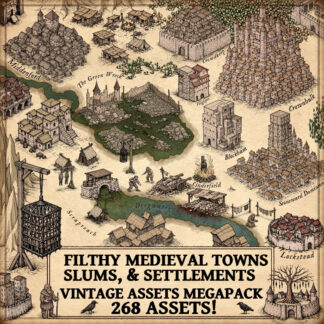
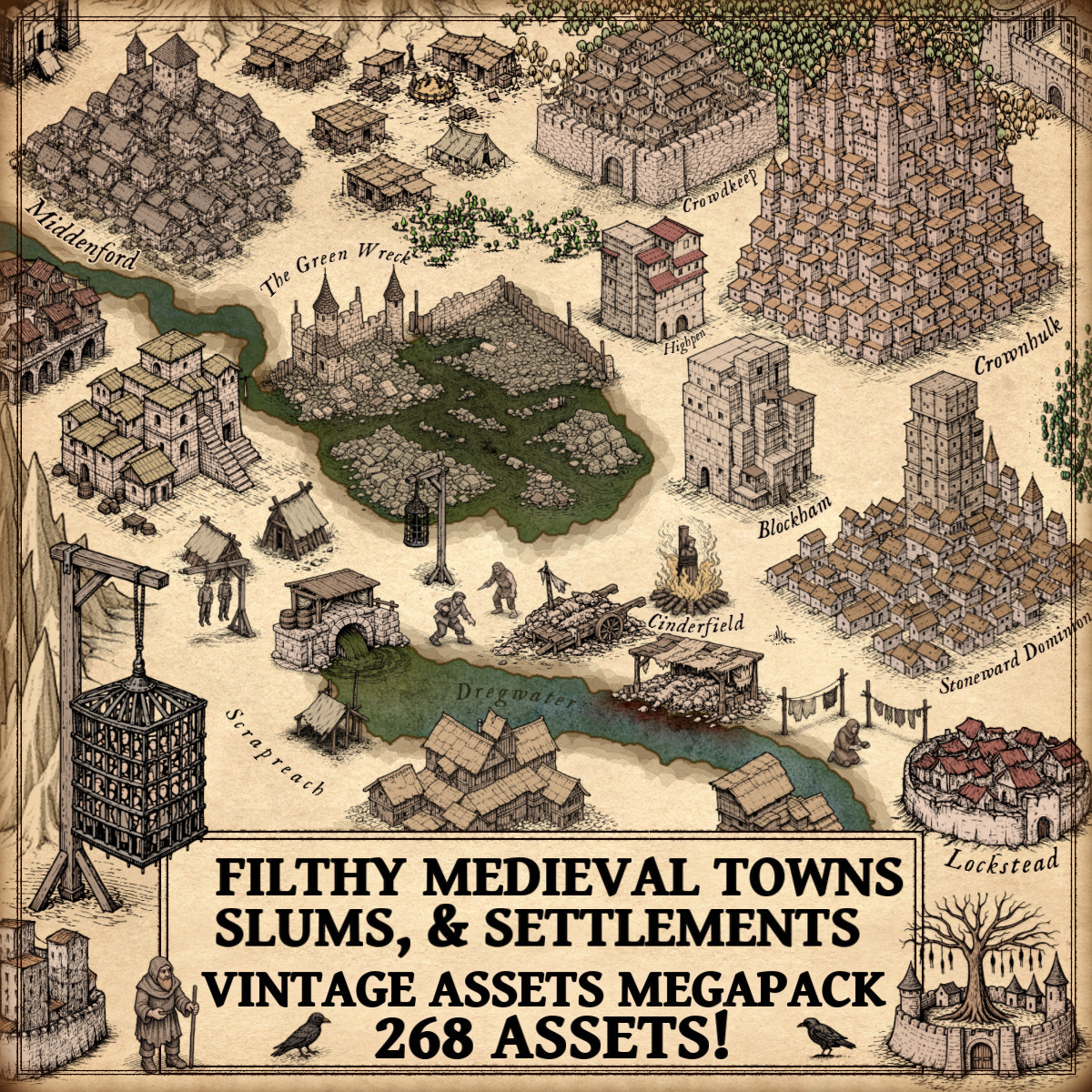
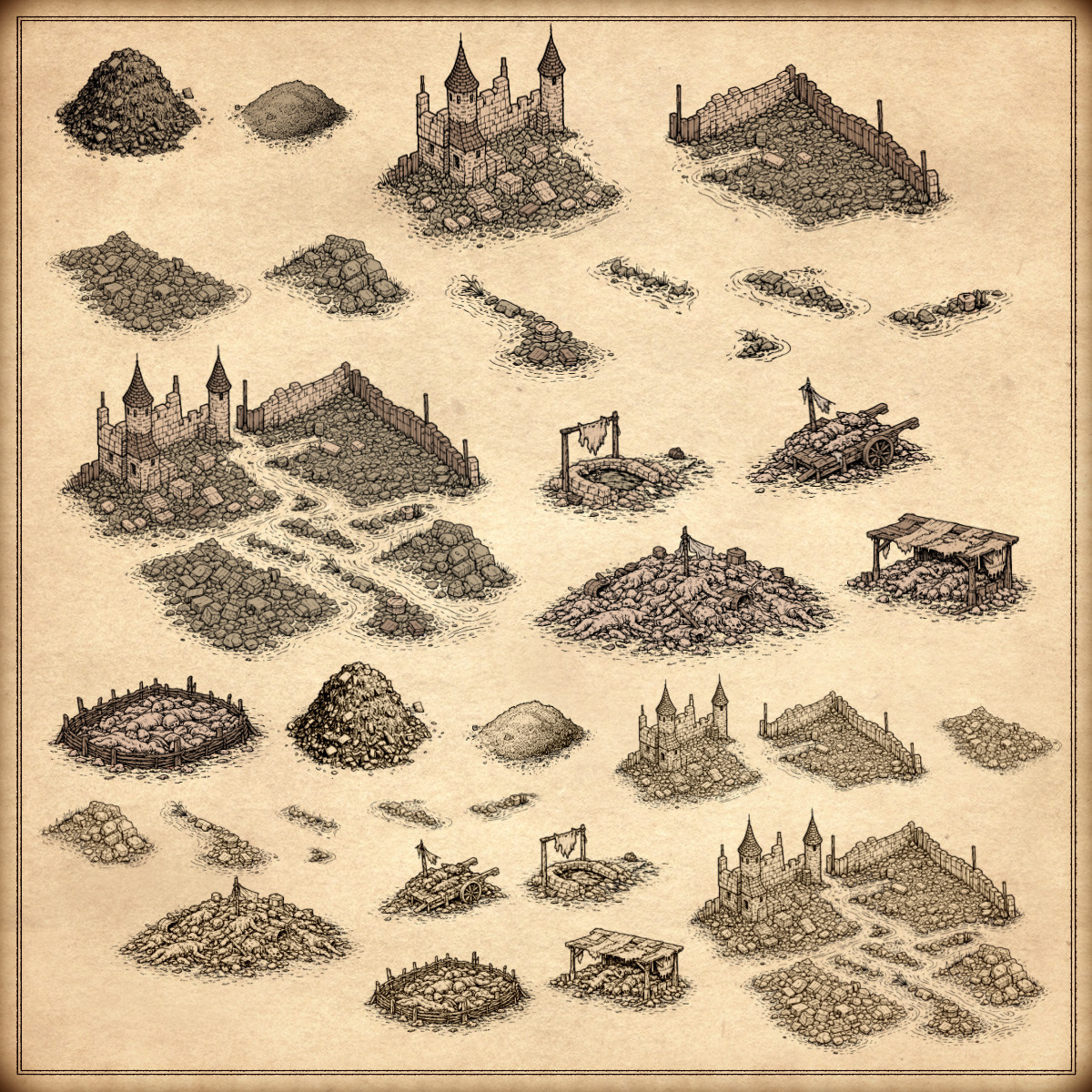
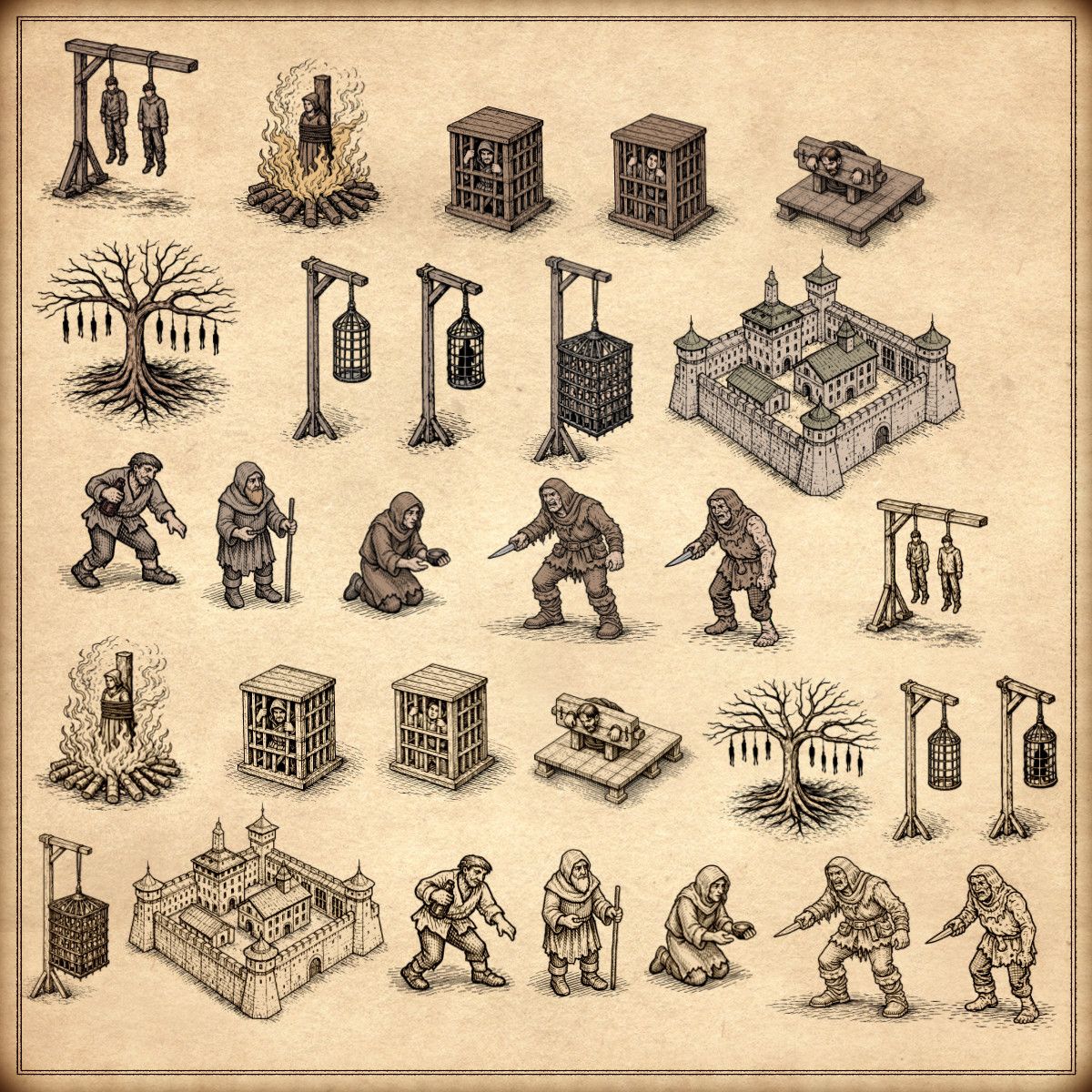
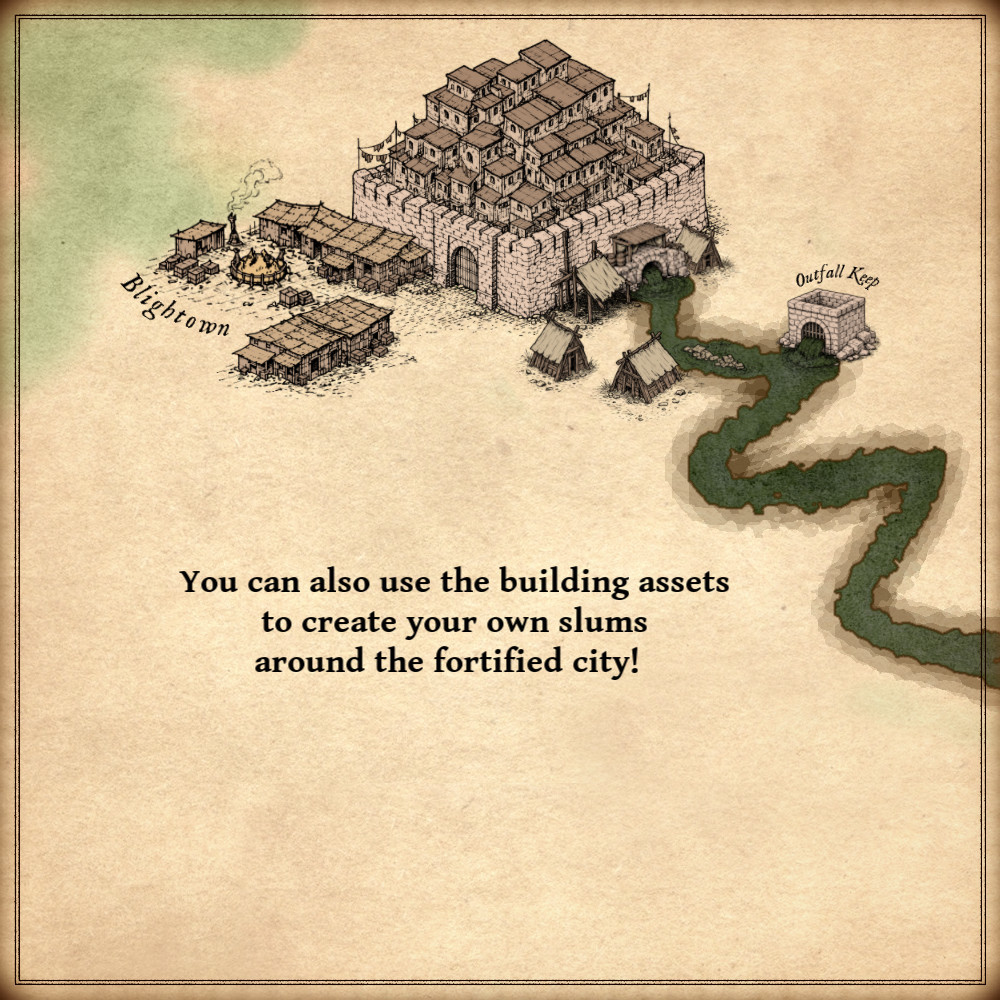
Take your maps to the darker side of fantasy with Filthy Medieval Towns, Slums, & Settlements – Vintage Assets Megapack, a gritty collection inspired by old-world cartography. This pack brings your worlds to life with filthy medieval towns, sprawling slums, ruined settlements, decaying castles, sewer outfalls, human waste, dungeons, gallows, hanging cages, pillories, ramshackle slum buildings, populated by figures like brigands and beggars, and many more assets. Perfect for adding realism, decay, and narrative weight to any fantasy map that isn’t afraid to get its hands dirty. These resources are designed for Wonderdraft, but easily usable in other softwares like Inkarnate (Wonderdraft assets are just .png files).
Pack content / map resources / map symbols:
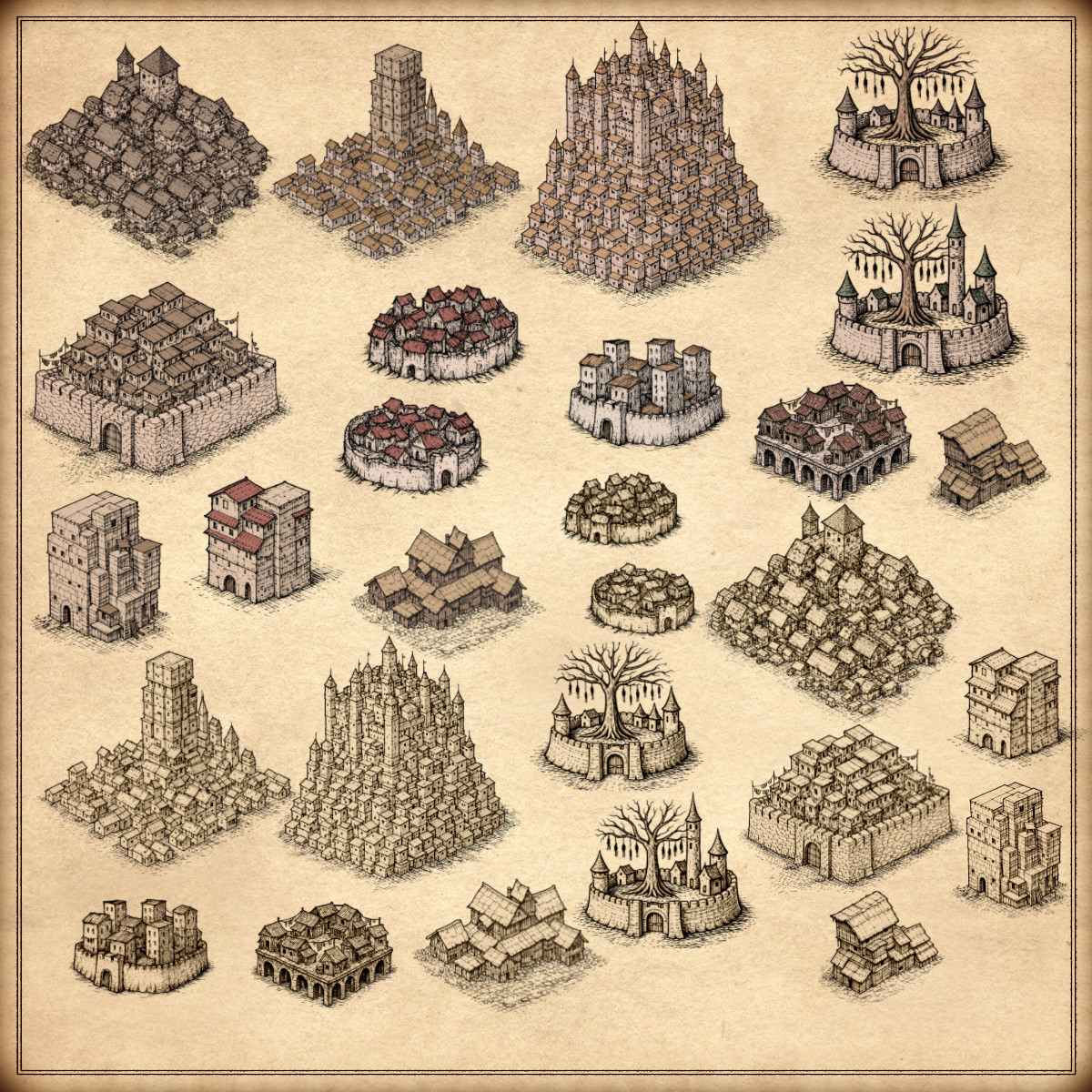
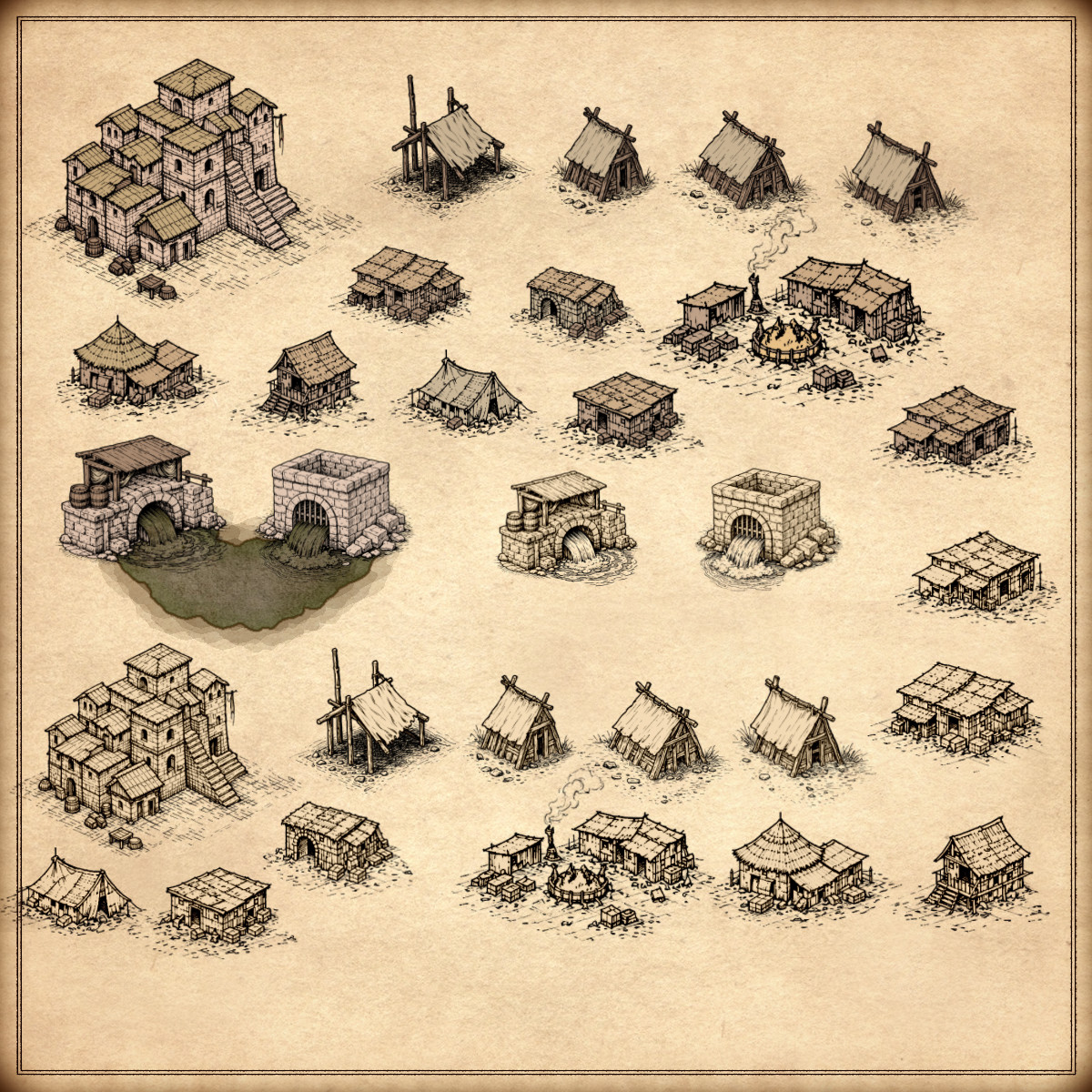
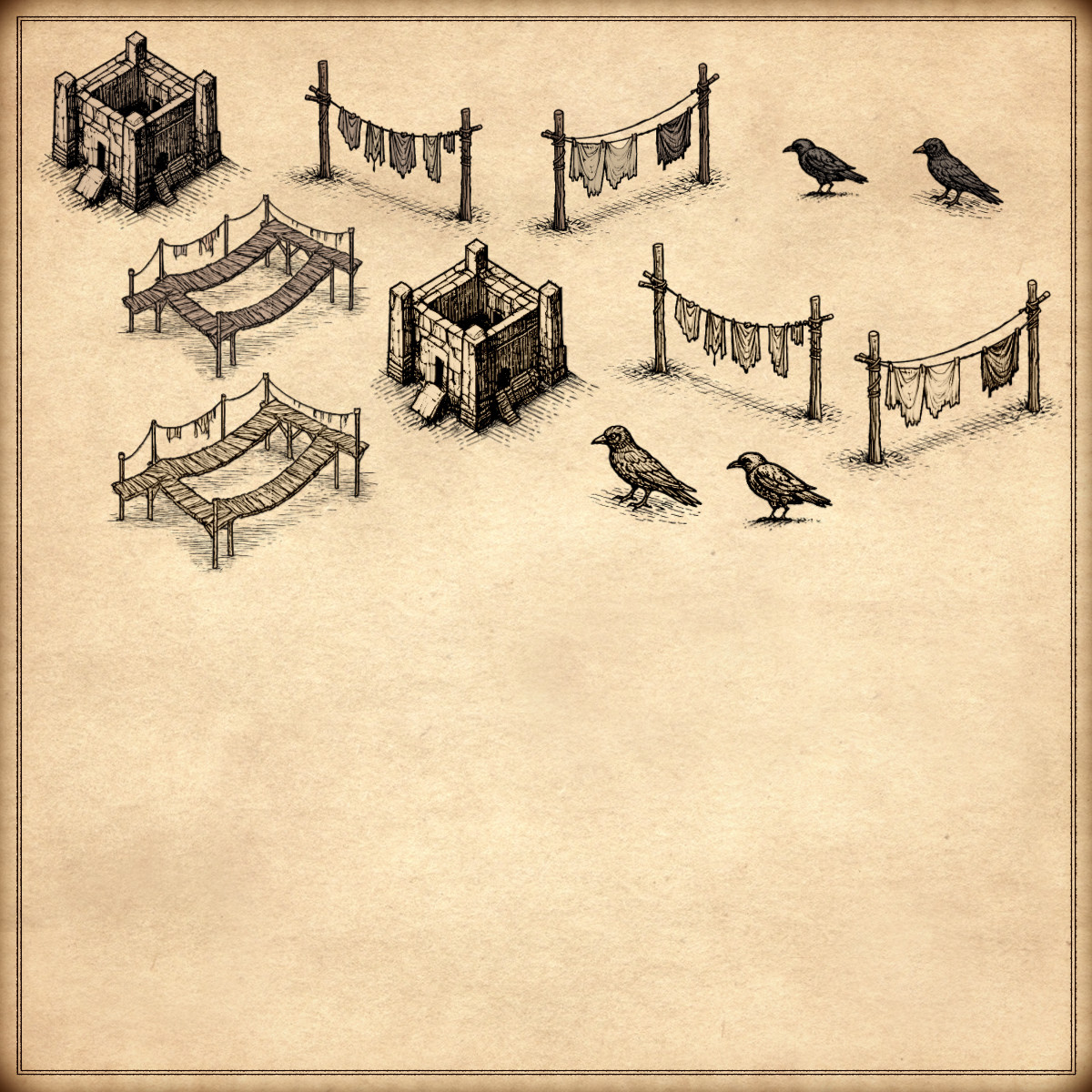
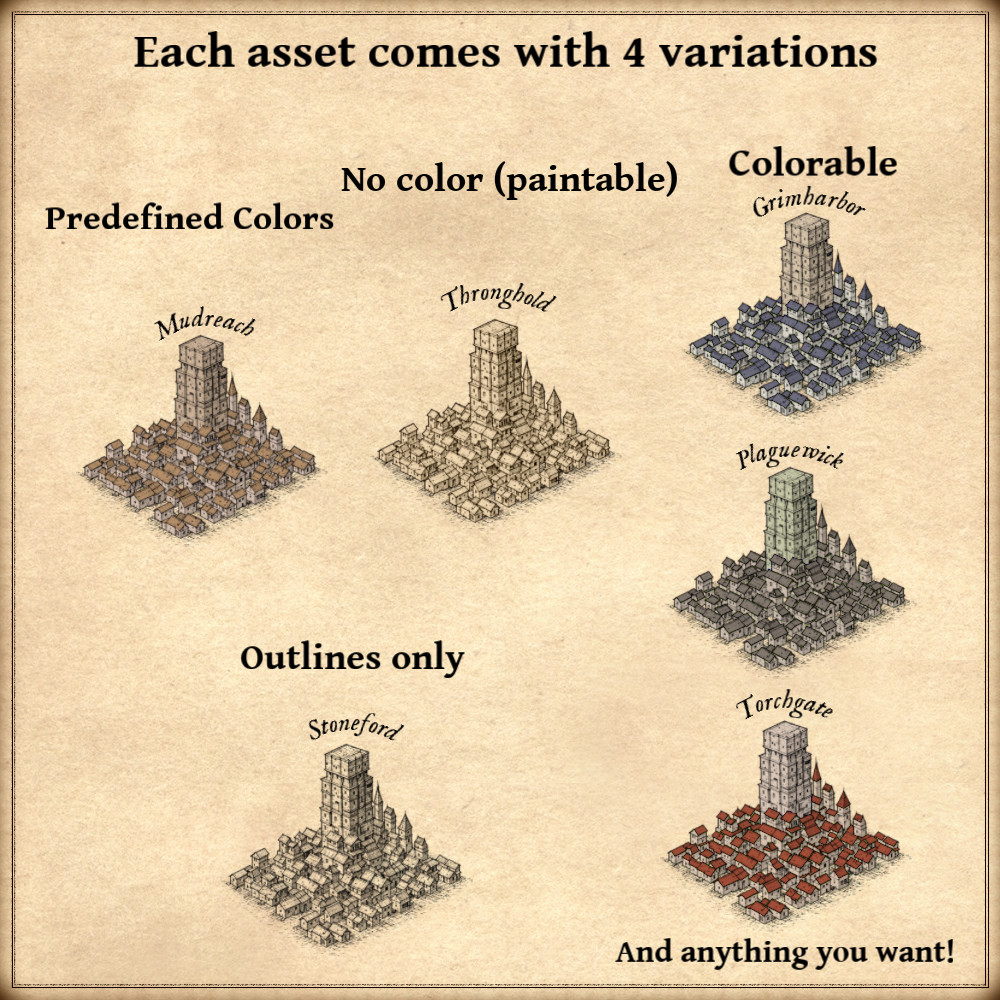
268 vintage assets / symbols : slums, slum buildings, filthy medieval towns, poor medieval villages, ruined settlements, decaying castles, sewer outfalls, human waste piles, prisons, gallows, hanging cages, pillories, brigands, beggars, fortified slums, walled towns, corpse mounds, ravens, and much more! for four types of variations (normal, outlined, colorable, paintable).
Details:
- Slums (Custom color, sample color, normal color, and outlined)
- Slum buildings and tents (Custom color, sample color, normal color, and outlined)
- Filthy medieval towns (Custom color, sample color, normal color, and outlined)
- Poor medieval villages (Custom color, sample color, normal color, and outlined)
- Ruined settlements (Custom color, sample color, normal color, and outlined)
- Abandoned towns (Custom color, sample color, normal color, and outlined)
- Ruins (Custom color, sample color, normal color, and outlined)
- Decaying castles (Custom color, sample color, normal color, and outlined)
- Sewer outfalls (Custom color, sample color, normal color, and outlined)
- Human waste piles (Custom color, sample color, normal color, and outlined)
- Refuse heaps (Custom color, sample color, normal color, and outlined)
- Rotting remains (Custom color, sample color, normal color, and outlined)
- Prisons and dungeons (Custom color, sample color, normal color, and outlined)
- Gallows (Custom color, sample color, normal color, and outlined)
- Gibbet trees with hanging corpses (Custom color, sample color, normal color, and outlined)
- Hanging prison cages (Custom color, sample color, normal color, and outlined)
- Pillories (Custom color, sample color, normal color, and outlined)
- Brigands (Custom color, sample color, normal color, and outlined)
- Beggars (Custom color, sample color, normal color, and outlined)
- Fortified slums (Custom color, sample color, normal color, and outlined)
- Walled towns (Custom color, sample color, normal color, and outlined)
- Corpse mounds (Custom color, sample color, normal color, and outlined)
- Ravens (Custom color, sample color, normal color, and outlined)
- Wooden sheds (Custom color, sample color, normal color, and outlined)
- Wooden cages (Custom color, sample color, normal color, and outlined)
- Burning stakes (Custom color, sample color, normal color, and outlined)
- Drying laundry lines (Custom color, sample color, normal color, and outlined)
- Wooden platforms (Custom color, sample color, normal color, and outlined)
- Rubble piles (Custom color, sample color, normal color, and outlined)
Sample Color – you can change their coloring and you can paint it with a colored brush.
Custom Color – their coloring can be user defined.
Normal Color – their coloring is predefined.
Outlined – outlines only.
Installation Instructions for Wonderdraft
After you have downloaded the zipped file unzip it into an empty folder.
You will have a new folder: ‘ Medieval slums megapack ’. Locate your Wonderdraft assets folder.
Copy and paste ‘ Medieval slums megapack ’ folder into your Wonderdraft assets folder.
Instructions for use with Photoshop or Gimp or any other image editing software
You can use the included PNG images with these software programs.
For images labeled as ‘normal color,’ you can use them as-is in all of your image software.
For images labeled as ‘sample color,’ if you want to create a transparent background and only keep the outlines so you can add your own colors, it’s best to put the layer with the image(s) in ‘multiply’ mode. This will make the white color completely transparent, allowing you to keep only the black lines.
For images labeled as ‘custom color,’ you can choose your own colors by changing the hue of each of the three primary colors separately.
May your journeys through cartography assets & fantasy map symbols be filled with boundless imagination and endless discovery. Happy mapping!
Feel free to revisit Fantasy Map Assets anytime for more exciting cartography resources and inspiration. Happy mapping adventures await you!